How strict the AI check is (blocking threshold)
The AI check reads a message before it goes to a guest. You choose how strict it is: stricter (it stops more messages) or looser (it lets more through). Use this page when the check stops messages you think are fine, or lets through messages it should stop.
For every problem it finds, the check knows two things:
- How serious the problem is:
info,minor,majororcritical. - How sure it is that the problem is real.
You have one setting for each. Only a problem that is serious enough AND sure enough stops the message. Other problems are only saved in the record, and the message is sent.
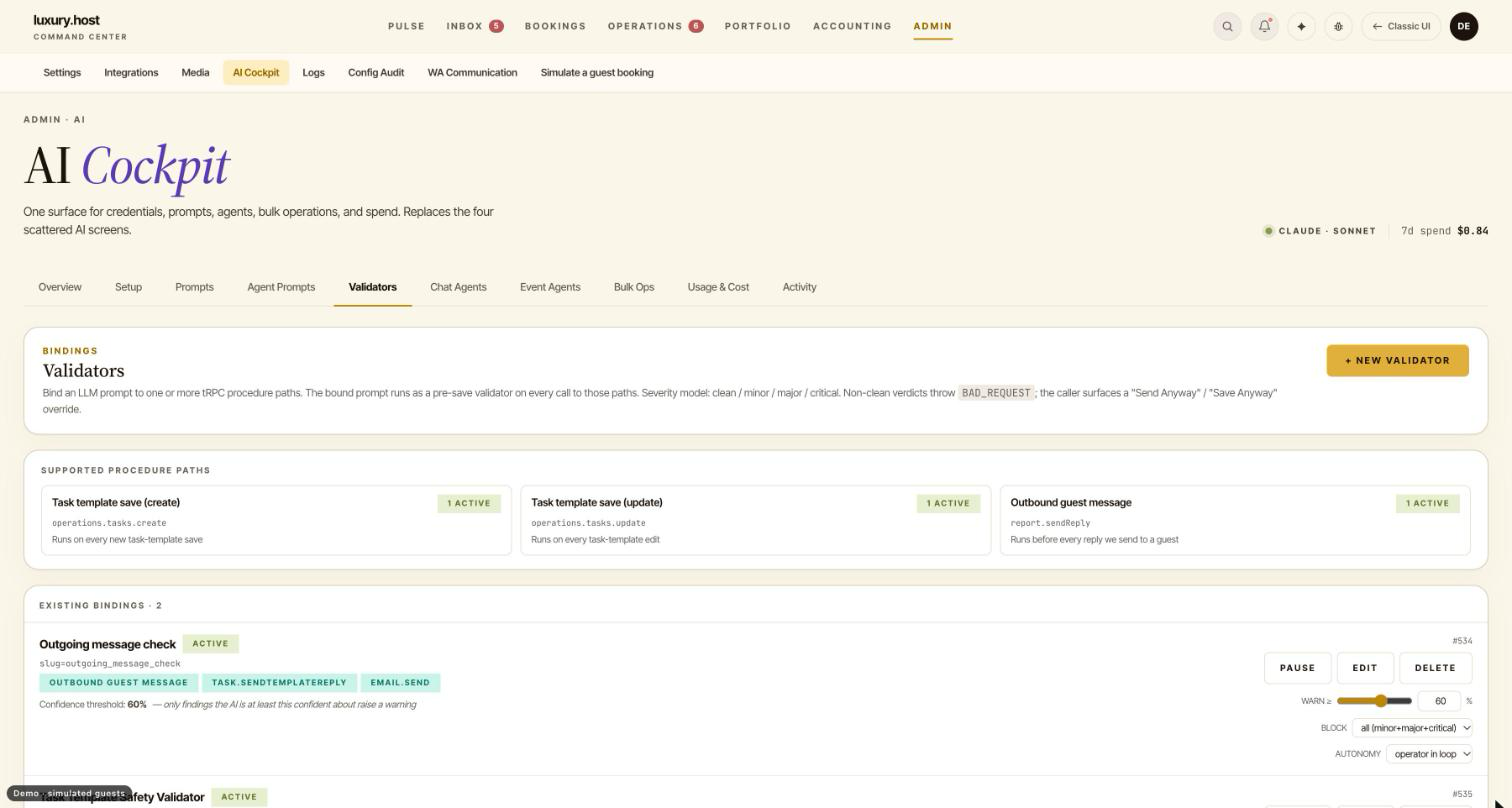
How serious: blocking threshold
The blocking threshold sets how serious a problem must be to stop a message.
| Threshold | Stops the message on | Use when |
|---|---|---|
| block-all | Any problem (info+) | Strictest. For risky templates, for example legal messages or payment confirmations. |
| major+critical (default) | major + critical only |
Balanced. The default for most templates. |
| critical-only | critical only |
Loosest. For many low-risk messages, for example the Thank-you message or simple FAQ replies. |
Default for your whole account
Each check (for example the parking check, the language check, the facts check) has a default threshold for your account. To change it:
- Open AI Cockpit → Validators.
- Click the check's row. In the app this row is called a binding, so the full path is AI Cockpit → Validators → click the binding → Default threshold.
- Pick the level in Default threshold.
Different level for one template
In the Task Templates editor → Validator behavior pick:
- Inherit binding default: use the account default (most templates).
- Override: pick a different level for THIS template only.
Example: the Welcome message often gets major problems that are false alarms. Set it to critical-only.
How sure: confidence threshold
The check gives each problem a number from 0 to 1: 0 means not sure, 1 means certain. The confidence threshold is the lowest number a problem needs to be shown at all. You set it for each check.
- Default 0.6 (medium): only problems the check is more than 0.6 sure about are shown.
- Lower it to 0.4: more problems are shown, with more false alarms.
- Raise it to 0.8: fewer problems are shown. Only problems the check is very sure about can stop a message.
Example: a major problem the check is only 0.5 sure about does not stop the message with the default settings, because 0.5 is below 0.6.
False alarms the app ignores
Sometimes the check writes "I noticed X, but X is fine", or its note is cut off. The app treats these as false alarms and ignores them. They never stop a message.
Pausing a check
To pause a check: AI Cockpit → Validators → PAUSE. It stays off until you start it again.
A platform-shared check is one that luxury.host provides for all accounts. If you pause one, it is paused for your account only. DELETE and EDIT also change a check for your account only.