Supply history
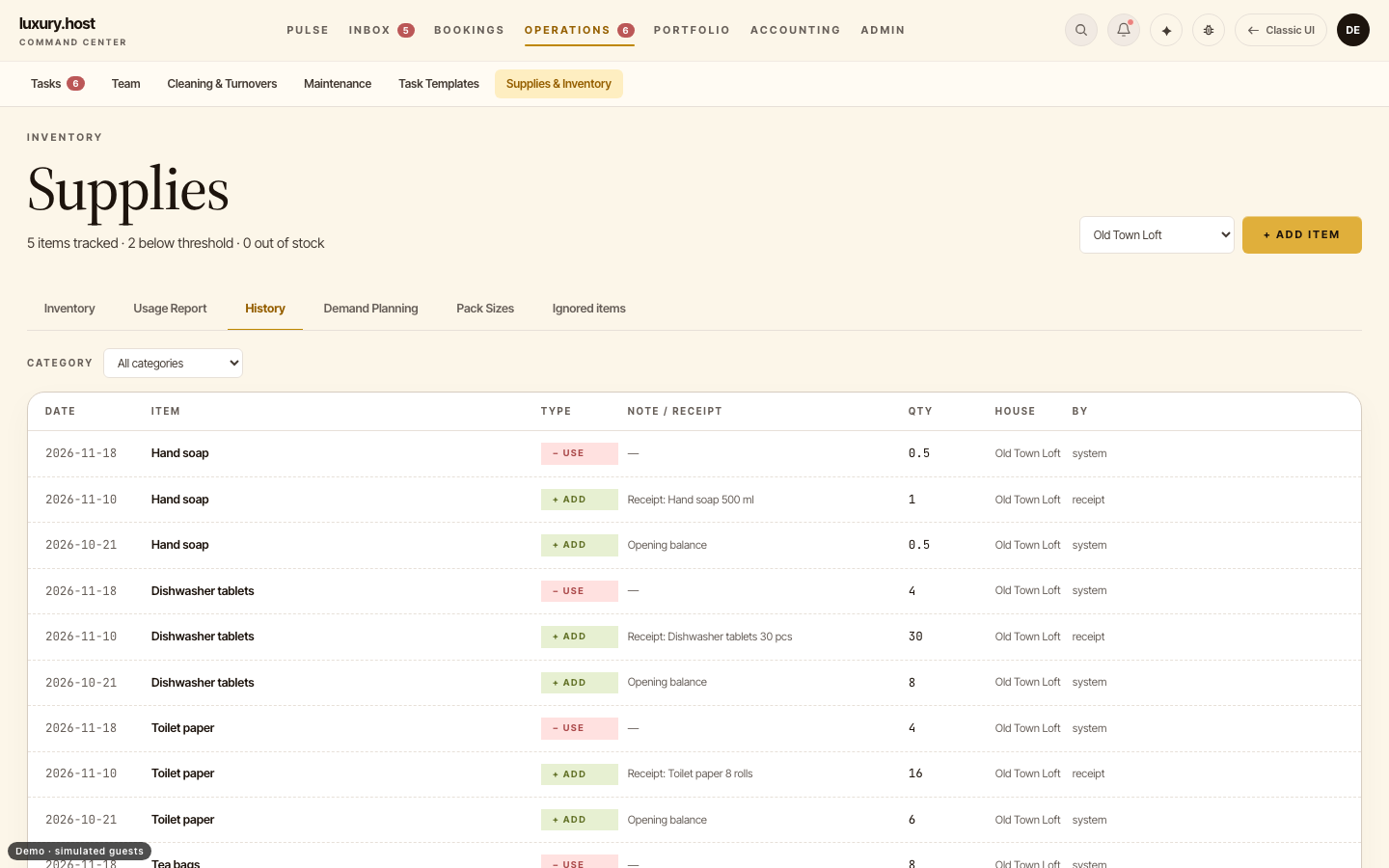 Each supply has a history: every restock, every use and every correction, on one timeline and one chart.
Open Operations → Supplies & Inventory → History.
What's on the screen
Transaction table
The History tab lists every stock change, newest first:
| Column | What |
|---|---|
| DATE | When it happened |
| ITEM | The supply |
| TYPE | + ADD (restock), − USE (used), or Recount (a stock count that was set or confirmed) |
| NOTE / RECEIPT | Your note, or the receipt. Click a receipt to open it |
| QTY | How many pieces |
| HOUSE | The property |
| BY | Who made the change |
Pieces-remaining chart
On the Inventory tab, click a supply row. A line chart opens with the pieces remaining over time. A green dot marks a restock. A red dot marks a use. Hover over the line to see details. Under the chart there is a list of the same events.
Category filter
At the top of the History tab there is a Category list. It starts on All categories. It offers the categories your supplies use, for example Guest Consumables, Cleaning Supplies, Laundry Supplies, Stay Essentials and Reusables. Pick one to show only the changes of that category.
Click an item to see its chart
In the main Supplies list, click an item row and its chart opens straight away.
AI categorize on each row
Each Supplies row has a menu with an ✦ AI item. Choose it and the AI translates the name to English and sets a category for the supply.
AI pack-size guess
Some products have no "pieces per pack" number on them (sold by weight, in sets, or in portions). For those, the AI suggests a pieces-per-pack number, based on:
- The product name
- Earlier receipts with the same product
- An online search for the product
- What you confirmed for similar products
It also says how sure it is. You confirm, the same way as in the Pack Sizes admin.
If the AI is not sure enough, the receipt line waits for you to confirm. Nothing is added without you.
Restock closes low-stock tasks
A low-stock task can close by itself when you restock:
- Stock goes above the reorder level, and the app records the restock.
- The open low-stock task checks its conditions.
- It closes as done.
The history shows what really happened: restocked, not a general "dismissed".
To set this up, open the low-stock task template in the Task Templates editor. In the AUTO-COMPLETE list, choose When restocked (supply back above minimum). This choice only appears for low-stock supply templates.