Smart Locks on mobile
The Locks tab shows the smart-lock state of every property on your phone.
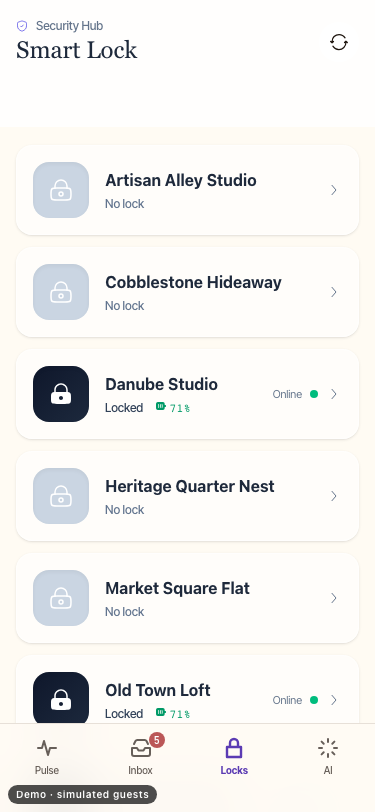
List view
The Locks tab opens a list of properties that have a connected smart lock. Each row shows:
- Property name
- Lock state:
LOCKED/UNLOCKED/OFFLINE - Battery level (if the lock sent it recently)
- Time of the last event (e.g. "32 min ago · unlock by Nina")
Tap a row to open the property.
Property page (3 tabs)
The property page has three tabs. Swipe or tap to switch.
1. Lock Control
The big "tap to unlock" / "tap to lock" button. The app asks you to confirm first. Unlock really opens the Nuki lock. Every unlock from the phone is saved in the Activity Log on the computer, marked as coming from the phone app.
2. Codes
The access codes for this property:
- Cleaner codes
- Maintenance codes
- Guest PIN (current reservation)
Each row shows the code, when it expires, who it belongs to, and a status (ACTIVE / EXPIRED / PENDING).
Tap a row to see all details or to revoke the code. When you revoke on the phone, the Nuki lock is updated right away and the change is saved in the activity log on the computer.
3. 2N QR
For properties with a 2N intercom, this tab shows the QR codes made for the current guests. It is the same as the "2N QR Codes" panel on the Smart Locks page on the computer.
If 2N is not turned on for this property, the tab shows "2N not enabled on this property".
Lock history
There is no Activity Log tab on the phone. To see the full lock history, open the Smart Locks page on the computer. On the phone, the property page shows the latest event in the header.