Supplies
Product images
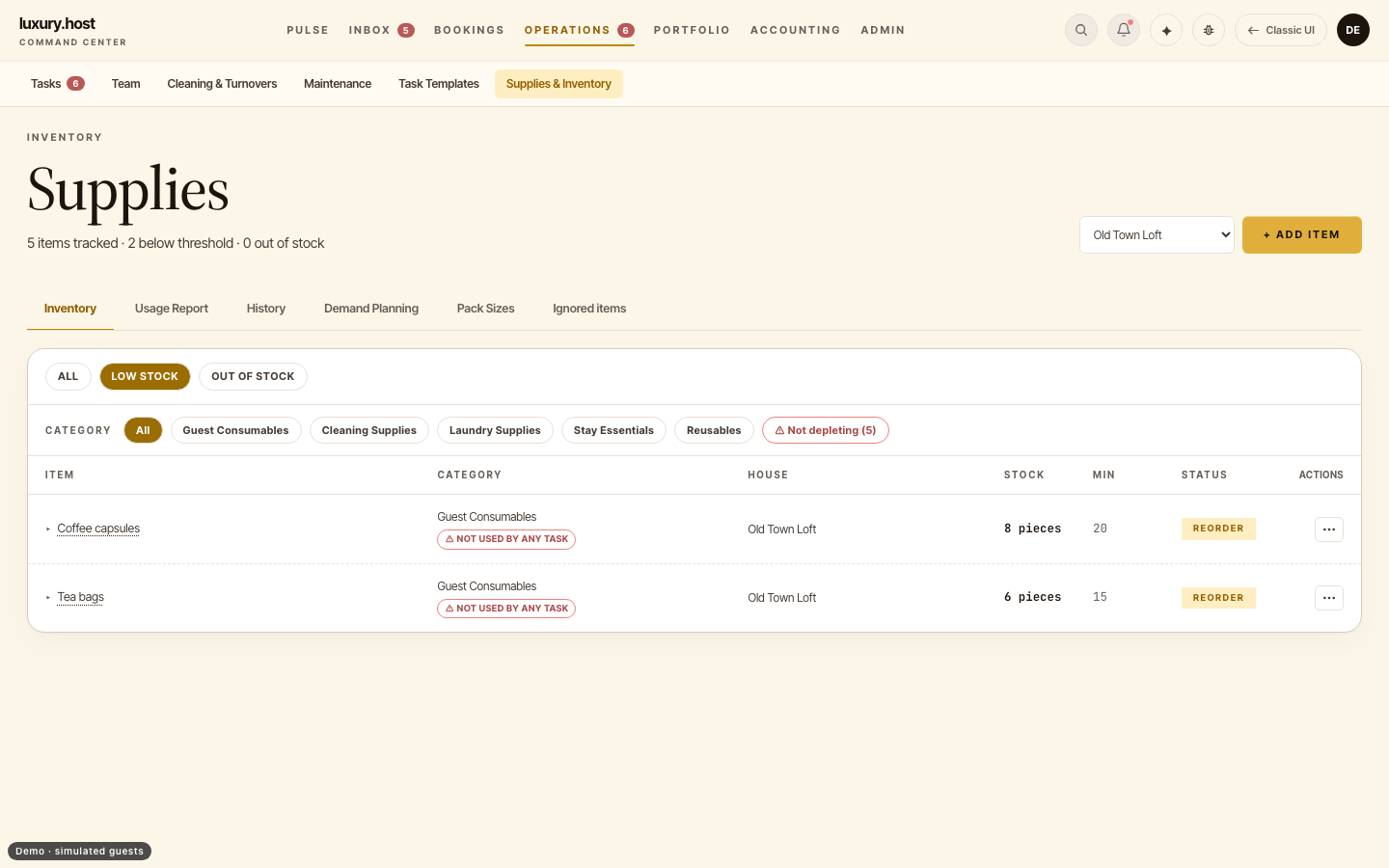
Each supply has a product photo. You see it in Inventory and History; click it to see it large.
Where the photos come from
Three sources, in this order:
- Manual override: you upload your own photo for this supply.
- Found online and checked by the AI: the app searches the web for the product by name, and the AI checks that the photo really shows that product before saving it.
- Placeholder icon: when there is nothing else.
How the AI checks the photo
- The app searches for product photos (the clean product name plus words from the receipt).
- It takes the top N photos found.
- The AI looks at each photo and asks: "is this a picture of
Coffee Capsules? Does it match the receipt textCAFISSIMO 70g FINE AROMA?" - The first photo the AI accepts is saved as the supply's photo.
- If the AI accepts none: the placeholder stays and the row is marked for you.
Each supply has a Re-fetch (AI) button that searches again. Useful after you renamed the supply, or when a photo of the wrong product got through.
Where the photo appears
- Inventory list: small photo on each row.
- History timeline: the same small photo on each row.
- Click any thumbnail: the photo opens large.
Rejecting a wrong photo
Each supply row has a Reject image button. When you reject:
- The photo is removed (the row shows the placeholder).
- The app searches again by itself, with different search words.
- If the new photo is still wrong, upload one yourself.
Protection against the wrong product
The search uses the brand and variant from your receipts (not just a general word like "capsules"), so the photos match what you really buy.
Source: the luxury.host operator manual.