Mobile foundation & navigation
How to move around the mobile app.
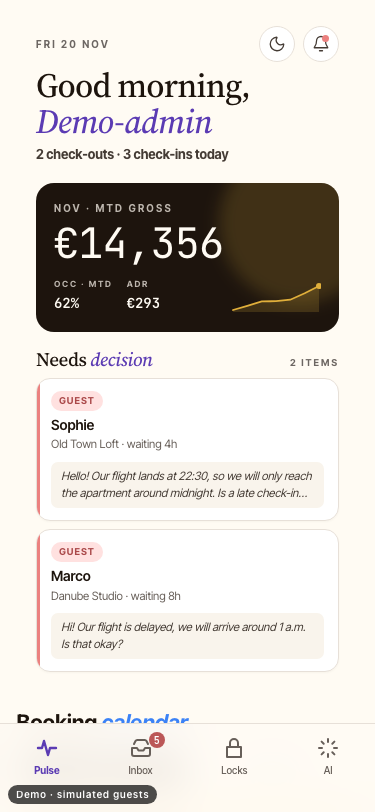
The bottom tab bar
Four tabs. You see them on the list page of every section:
| Tab | What it shows |
|---|---|
| Pulse | Today's tasks, unanswered messages, booking calendar |
| Inbox | All guest conversations, with a count of unread ones |
| Locks | All properties and their smart-lock state |
| AI | Pulse Copilot chat assistant |
The Inbox tab shows a number: how many conversations are unread or unanswered. It is the same number as the "UNANSWERED" group on the computer Pulse. If you reply on the computer, the number on the phone goes down too.
Page titles
Each tab opens a list with a big title on top. When you scroll down, the title shrinks into a small bar, so you always know where you are.
Opening an item
When you open a row (a conversation in Inbox, a property in Locks), it fills the screen:
- The bottom tab bar hides, so you get more space.
- A back arrow
<shows top-left. Tap it to go back to the list. - You come back to the same place in the list.
Inside the item, only the item scrolls (the chat in Inbox, the tabs in Locks).
Phone edges
The app keeps clear of the phone's edges:
- The top of the screen stays free for the phone's clock and battery.
- The tab bar sits above the home bar at the bottom of the screen.
So the tab bar is never hidden behind the home bar on iPhones, or behind the camera hole on Android phones.
Using the computer version
There is no "switch to desktop" button in the phone app. The phone and the computer show the same data. For reports, the task template editor or admin tools, open the same address in a computer browser. You stay logged in.