Special requests
When a guest writes "I need parking", "I'd like wine for arrival" or "Can I bring my dog?", that is a special request. The app spots these messages for you and creates a task with Approve, Reject and Edit. By default, nothing reaches the guest and nothing changes on the reservation until you decide. You can turn approval off for some request types (see Settings for your account).
How the app spots a request
The AI reads every message from a guest. You decide what counts as a special request by editing the AI instruction text:
- Open AI Cockpit → Prompts and edit the instruction text.
- What you write there is what the AI looks for. The app has no other list of request types.
When the AI finds a request, it records:
- A category (for example
wine,parking,beds,early_checkin,late_checkout,pet,other) - A short summary (for example "guest requested wine for arrival")
- How sure it is
You approve first
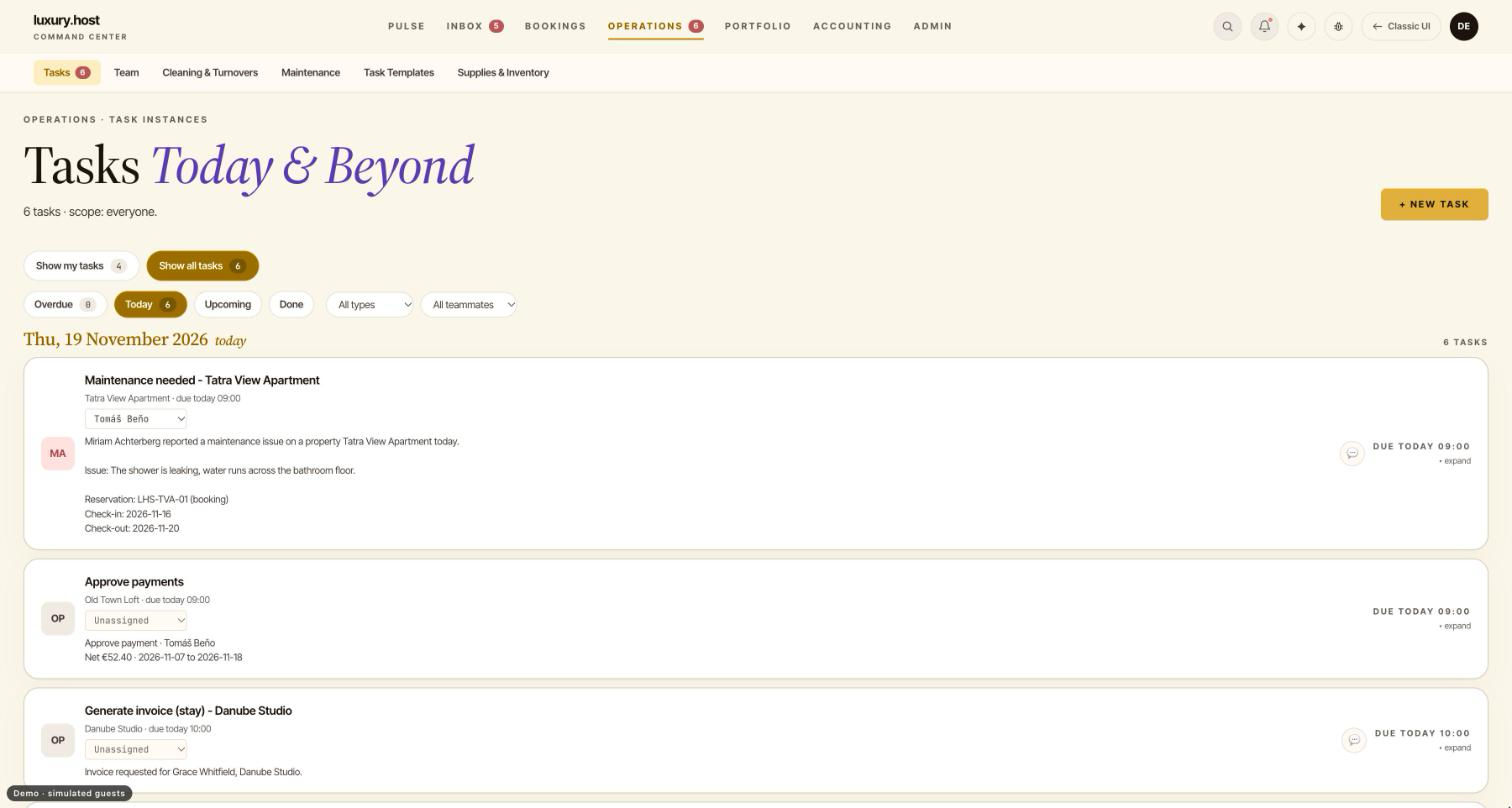
A request is NOT added to the reservation automatically. The app creates a task instead:
- A
Special request noted: <category>task appears in Operations → Tasks. - Open it to see the guest's message, what the AI understood, and the buttons Approve / Reject / Edit.
When you approve the task, the app saves your decision on the reservation. For example, an approved early check-in saves the early check-in and the approved time. The cleaner sees it in their list of cleanings, and your task rules react to it.
What "Approve" does
What you see after approving, per category:
| Category | After you approve |
|---|---|
early_checkin |
Early check-in is set, with the approved time |
late_checkout |
Late checkout is set, with the approved time |
wine |
A wine chip is added to the reservation |
parking |
A parking chip is added to the reservation |
beds |
A beds chip is added to the reservation |
pet |
A pet is allowed and a chip is added |
other |
Your free text is added to the reservation |
You then see it in:
- Calendar chips (🍷 wine / 🛏 beds / 🅿️ parking /
eCI? @13:00) - The cleaner's list of cleanings (so the cleaner knows what to prepare and when to finish)
- The reservation panel
What "Reject" does
The app saves your reason on the task and drafts a polite reply to the guest that says no. You check the reply before it is sent.
What "Edit" does
Opens an editor in the task. Change the category, the time or the chip text, then approve with your changes.
Settings for your account
You can adjust everything for your account:
- The instruction text for spotting requests (AI Cockpit → Prompts).
- What each category saves on the reservation (Task Templates editor).
- Which categories need your approval and which are applied automatically (approval is on by default).
Example: if you are happy to accept early check-ins that are less than 2h before the standard time, turn off approval for that rule. Those requests then skip your approval and are applied automatically.
What if detection misses
Sometimes the AI misses a request, and no task appears. Then:
- Answer the guest yourself and handle the request as usual.
- Open AI Cockpit → Prompts and add that kind of request, with an example sentence, to the instruction text. The AI then spots it next time.