Integrations
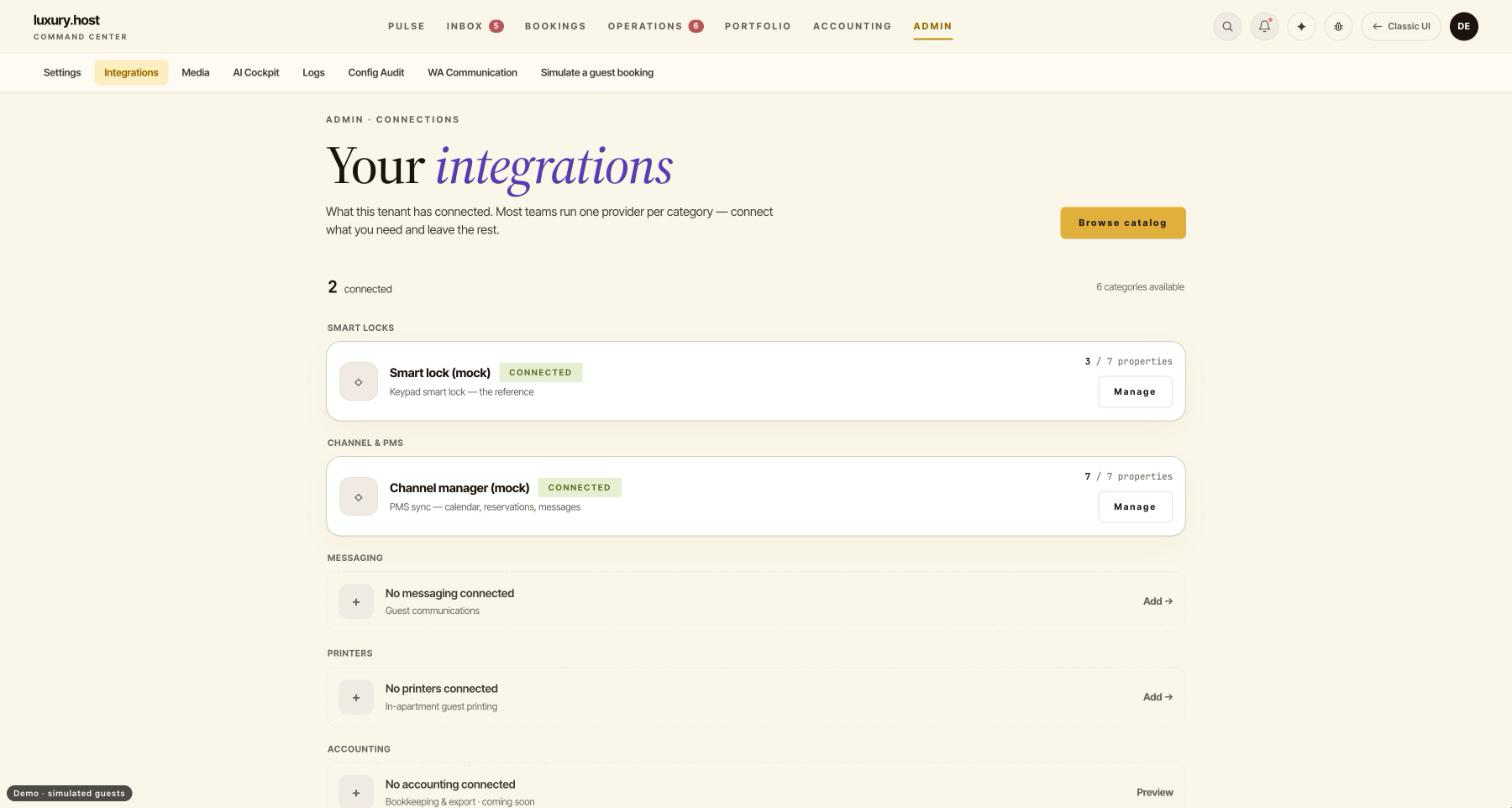
Your account connects to other apps for bookings, guest messages and door access. Use this page to check that each connection works.
Hospitable (main booking channel)
Hospitable brings in your bookings from all channels.
- API key: your Hospitable key for this account
- Webhook URL:
https://app.luxury.host/api/webhooks/hospitable/t/<slug>. Copy this link into the Hospitable settings. The last part of the link is the short name of your account. Ask luxury.host if you do not know it. The other links on this page end with the same short name. - HMAC secret: a secret code that proves the messages really come from Hospitable
Check it works: open Admin → Webhook Logs and look for recent messages from Hospitable. If nothing arrived in 24h, Hospitable may have switched the connection off.
WhatsApp Cloud API
Connect your own guest WhatsApp number with the Connect guest WhatsApp number button on the Integrations screen. The number stays on your phone. What you need, Meta's steps, the 60-day renewal and common errors: Getting Started → Onboarding a new account.
You can also set it up by hand with these fields:
- Phone number ID: the ID Meta gives your number. The app uses this field to find your account; if it is empty, every incoming WhatsApp message is dropped without any warning.
- Business account ID: the Meta business account the number belongs to.
- Verify token: a code Meta uses to confirm the connection.
- Access token (secret): a long-lived access code. Renew it before it expires. Check the expiry date in your Meta account and put a reminder in your calendar.
The link to enter at Meta: https://app.luxury.host/api/webhooks/wa/t/<slug> (see Communications → WhatsApp Bot).
Check it works:
- Webhook Logs: incoming messages keep arriving.
- From a phone that is not on your team, send a message to your WhatsApp number. It should show on the WhatsApp screen within seconds.
- Test sending: from a booking conversation, send a free-text reply and check it arrives on the other phone.
Nuki
- API token: your Nuki access code (admins only, stored encrypted)
- Lock IDs for each property are set on the property. See Properties → Smart Locks
Check it works:
- Open any property's Smart Lock page. The Active codes list should fill within a second or two.
- Create a manual maintenance code and check it shows in the Nuki phone app for that lock.
2N intercom (optional)
For buildings with 2N intercoms:
- The 2N device ID is set on each property
- 2N QR codes for each teammate are made in the teammate editor. See Team & Access → Access Codes
Email (SMTP)
Sending email from your own address: see Settings → Notifications → Email (SMTP).
Beds24 (older connection)
For accounts moving from Beds24, the connection is read-only and keeps your past bookings in sync. Webhook URL: https://app.luxury.host/api/webhooks/beds24/t/<slug>.
Setting up a new account
The connection steps for a new account:
- luxury.host staff create your account.
- Hospitable: paste the link and the HMAC secret into Hospitable.
- Connect the guest WhatsApp number with Connect guest WhatsApp number (how), or set it up by hand: paste the link and verify token at Meta, then fill in the phone number ID in your settings.
- Nuki: enter the API token and add the lock IDs for each property.
- (Optional) 2N: add the device IDs for each property.
- (Optional) Set up SMTP for sending email.
- Check each connection with the Check it works steps above.
- Test it all: make a test booking in Hospitable, check the tasks appear, check the guest gets the check-in WhatsApp.