Task templates audit log
See every change to your task templates: who made it, when, and what changed.
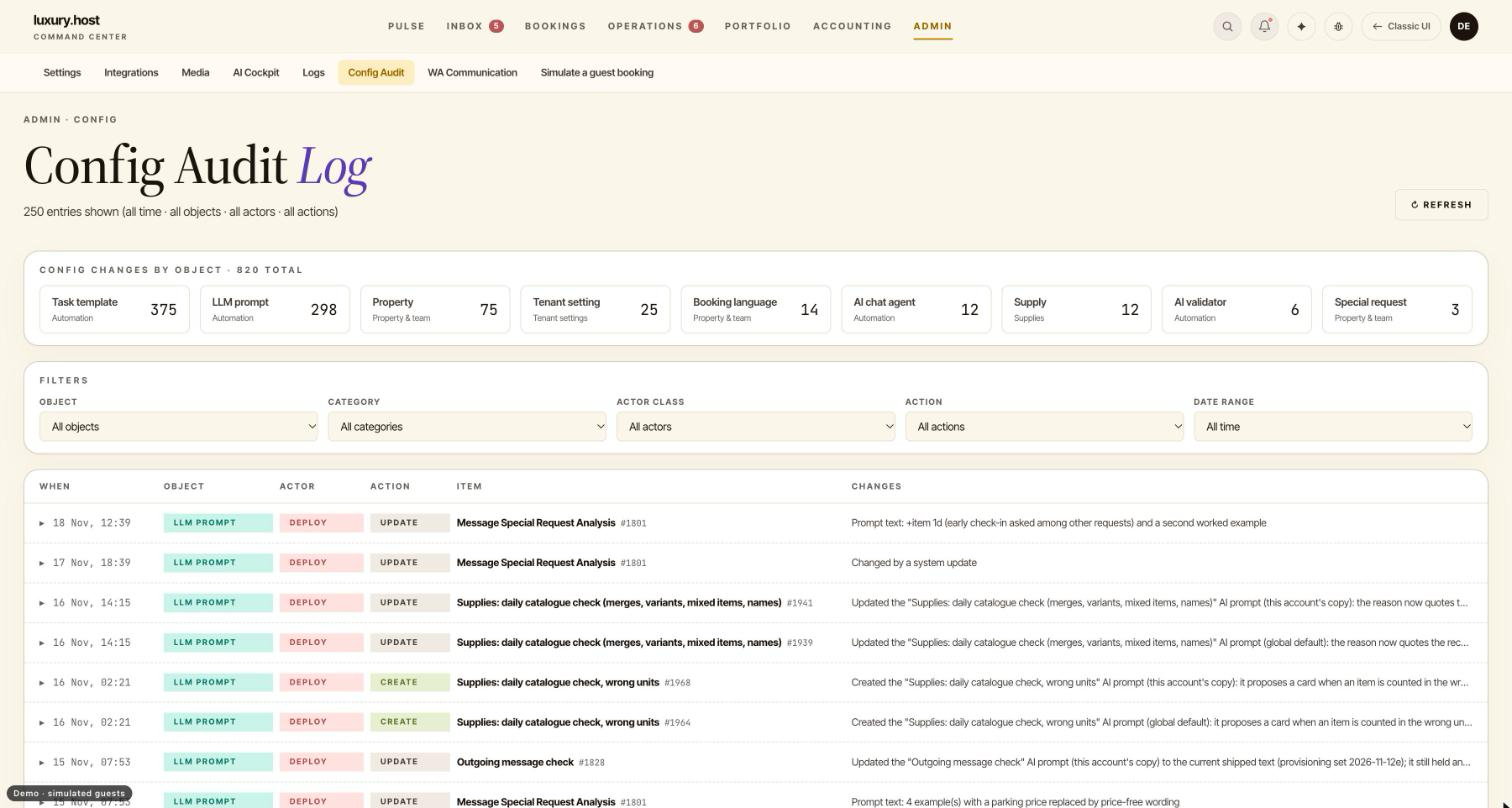
Open: Admin → Config Audit. Then set the OBJECT filter to Task template.
The Config Audit entry shows only on accounts that have the log screens switched on. If you do not see it in the Admin menu, ask the person who manages your account.
Why it helps
Your task templates are your own settings. You wrote them, so you should always know when they change. A template can be changed by:
- you or a teammate
- an app update
- the AI assistant (Pulse Copilot) when you ask it to change a template
- a support script
The log saves a row for every change, with who made it, what changed and when.
The same screen also lists changes to your other settings, such as properties, teammates, AI validators, supplies and fees. The filter Task template narrows it to templates.
What each row shows
| Column | What |
|---|---|
| WHEN | When the change happened |
| OBJECT | The kind of setting, for example Task template |
| ACTOR | Who made the change (see below) |
| ACTION | What was done, for example create, update or delete |
| ITEM | The name of the template |
| CHANGES | A short summary of what changed |
The ACTOR chip shows the kind of actor:
| Actor chip | Who changed the template |
|---|---|
| MANUAL | You or a teammate |
| COPILOT | The AI (Pulse Copilot) |
| DEPLOY | An app update |
| SCRIPT | A support script |
| BACKFILL | A one-time data fix |
| SYSTEM | The app itself |
Click a row to open it. You see the object and category, the actor with the person's name when it is known, the exact time, any note, and the raw change with the values before and after.
Filtering
You can filter the log by:
- OBJECT and CATEGORY (for example Task template, or the category Automation)
- ACTOR CLASS (only people, only the AI, only app updates, only scripts, and so on)
- ACTION
- DATE RANGE (today, 7 days, 30 days, 90 days or all time)
Your filters stay in the page address, so you can bookmark a filtered view.
The strip at the top shows how many changes each kind of setting has. Click one to filter by it.
What you can check
1. Did an app update change your edit?
If you edited a template yesterday and an app update changed it this morning, the log shows both rows. Open the row to see the values before and after, then edit the template to put your values back.
2. What did the AI change?
When Pulse Copilot changes a template, the row shows COPILOT as the actor. Filter ACTOR CLASS to the AI to see all of its changes.
Task status changes
This screen is about settings. To see a task move from not done to done, open Admin → Logs → Audit.