Dashboard (Pulse)
The Pulse dashboard is your home screen. You see it right after you sign in, and many hosts keep it open all day. To open it again, choose Pulse → Today in the top menu.
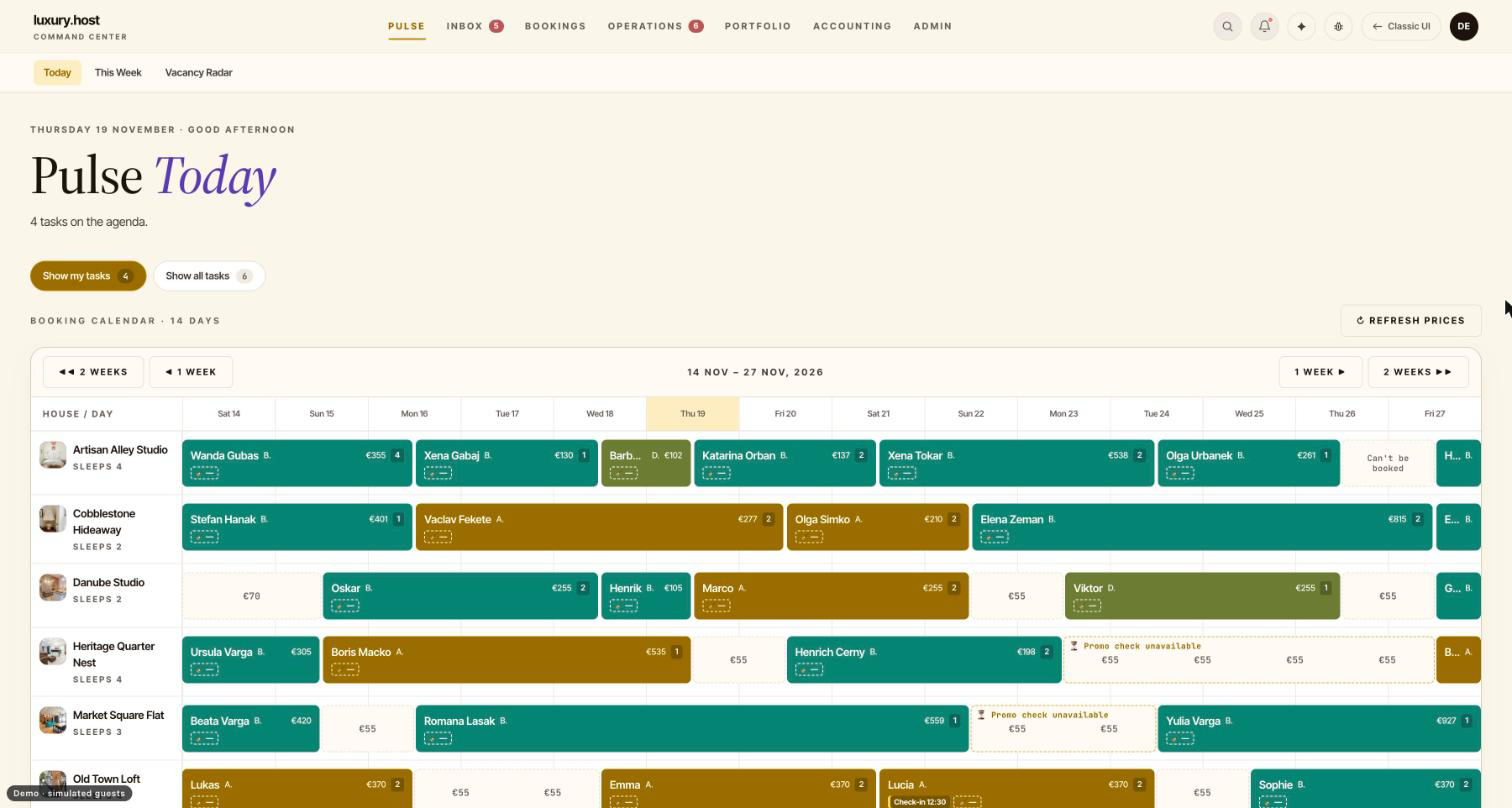
What is on the screen
Header
The header greets you with the date and the time of day, and shows Pulse Today with a line such as how many tasks are on the agenda, how many are overdue and how many will appear later.
Two buttons switch the agenda: Show my tasks and Show all tasks.
Booking calendar
A BOOKING CALENDAR · 14 DAYS strip shows the next two weeks of your bookings.
Arrivals and departures
Rows of cards show what is coming: CHECKOUT TODAY, CHECKOUT TOMORROW, CHECK-IN TODAY, CHECK-IN TOMORROW, CHECK-IN +2 DAYS and BOOKED TODAY. If there is nothing, the screen says ALL QUIET.
Daily Agenda
The agenda has two columns.
Needs action (your click resolves these) lists tasks for your role that the app cannot finish on its own, for example Send Check-in. A card has a chip such as DUE with the time, OVERDUE or BLOCKED.
Auto-resolves (watch the clock, no action needed) lists tasks that will run or finish automatically later today. The chip shows AUTO with the time, or BLOCKED when the condition for the task is not met.
Why this matters: say you see an AUTO 19:00 task with a BLOCKED chip, and the condition is something you can fix (for example, reply to the guest's open message). Then you have until 19:00 to do it. See Tasks → Auto-resolve for how this works.
Unanswered
UNANSWERED lists guest messages that wait for a reply. Open one and use AI Suggest to draft a reply. VIEW ALL opens the Inbox. See Communications → AI Suggest.
Pulse Copilot
A chat panel. You open it with the Copilot button in the top menu. Ask it questions about your bookings and tasks, paste a screenshot from a guest, or ask it to create a task. See Pulse Copilot.
While cards load
While a card loads, it shows grey boxes, never an empty space. If a card stays grey for more than ~5 seconds, it probably failed. Reload the page. If it keeps happening, send a bug report from the app.
Where to next
- A task card has no time? See Tasks → Task Card anatomy.
- An automatic task is blocked and you don't know why? See Tasks → Auto-resolve.
- The AI did not pick up a guest message? See Communications → AI Suggest.