Task Templates Editor
In the task template editor you set up a template. Every part of a future task starts here.
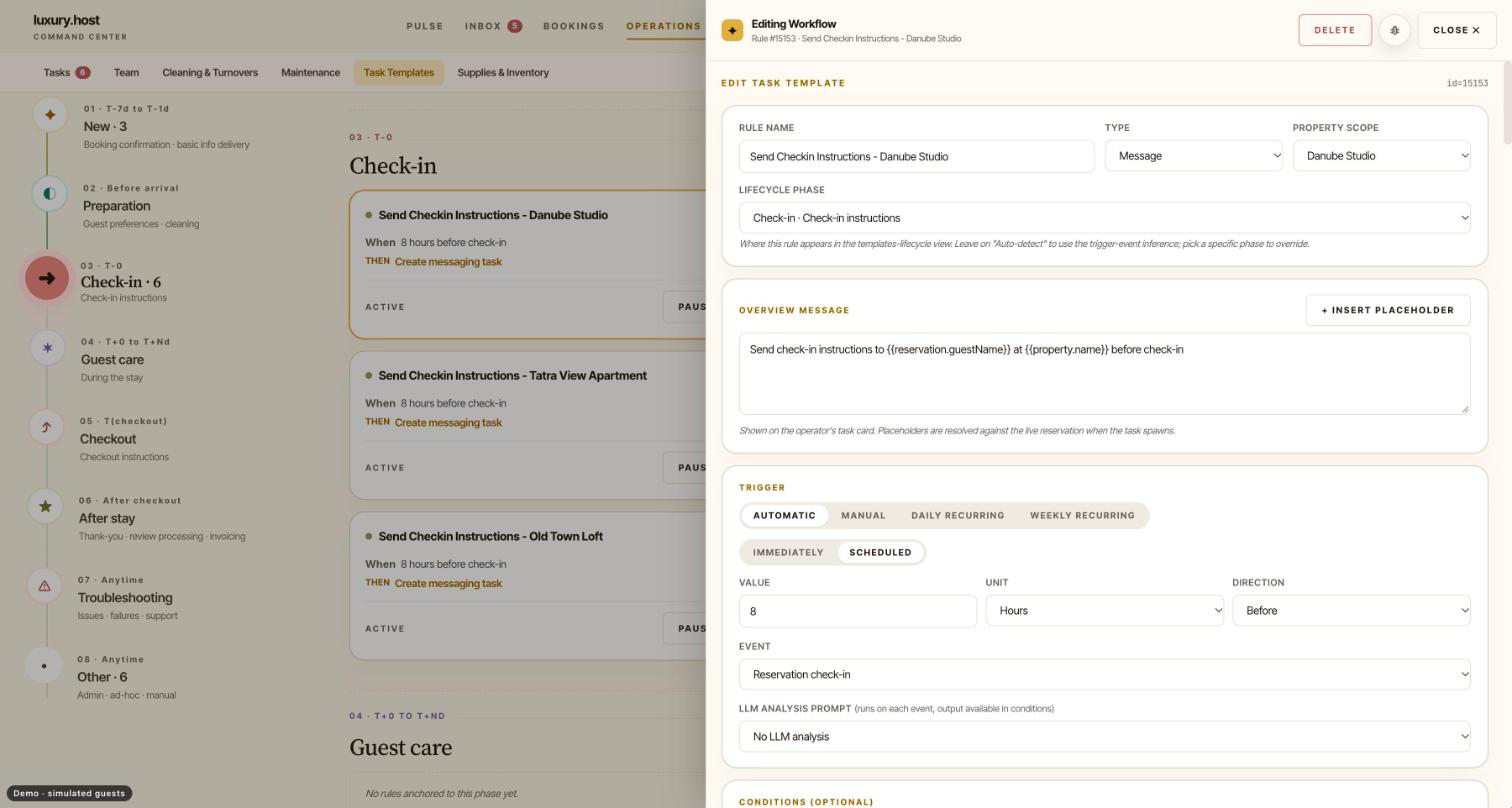
Opening the editor
- Operations → Task Templates, then click a template or New template.
- From the Manual Trigger page: the Edit template link.
Editor sections
1. Basics
- Name: the label that becomes the task name.
- Language: the name in other languages (Slovak, English and more). When a task is created for a booking, the app picks the right language (see Communications → Languages).
- Description: optional notes for you about what the template does and why.
2. Trigger
- Event: what starts the template, for example
reservation.created,reservation.checkin,reservation.checkout,after_checkout,cleaning.required. Pick it from the list. - Trigger offset: for example "24h before checkInTime", "2h after checkOutTime", "at 19:00 the day before check-out".
- Conditions to fire: optional. The task is created only if these are true when the event happens (for example "only if guestMood is friendly").
3. Assignee
- Role: host / cleaner / admin / one teammate.
- Routing rule: the teammate who has this role for the flat, or always the same teammate.
4. Action
The most important part. Pick from the dropdown:
whatsapp.sendTemplate: send an approved WhatsApp templatewhatsapp.sendFreeText: send a free-text message (the 24h window applies)nuki.generateCode: create a PINnuki.revokeCode: remove a PINreport.sendReply: the AI drafts a reply in the chat and sends itguidebook.generate: make the guidebook PDF for the staycleaner.assign: assign a cleaner to the cleaning task- …and ~30 more
Each action shows its own settings as form fields.
5. Action parameters
Settings can be texts with placeholders. The app fills the placeholders in. See Placeholders.
Example: a whatsapp.sendTemplate action with the checkin_instructions template could fill in the guest name with {{guest.name}} and the check-in time with {{reservation.earlyCheckinTime|property.checkInTime}}.
The | means "if the first is empty, use the next". See Placeholders.
6. Auto-resolve
Optional. If you set it:
- Schedule time: HH:MM, in your account's time zone.
- Conditions: a list of yes or no checks (
reservation.nukiAccessCode is_not_null,messageThread.hasUnansweredGuestMessage equals false, …). - Notify on not met: if a condition fails at the set time, you get a message.
See Tasks → Auto-resolve for what happens then.
7. Allow dismiss
If ticked, you can close the task without running the action. Useful for "FYI" tasks, where the action is just information and a person may decide otherwise.
A template with only Allow dismiss and no action is fine. The editor saves it and shows a note that the task will have no action.
Checks when you save
The editor checks everything when you press Save:
- Placeholder syntax:
{{guest.name}}and others must point to a real field. - Action settings: the required settings must be filled in, with the right kind of value.
- Language coverage: if a template has an English name but no Slovak name, and you have Slovak teammates, the editor warns you.
- Condition references: every field in a condition must exist.
Errors show right above the field. Fix them and save again.
Dry-run
After saving, click Dry-run against reservation to see what would happen for one stay. Pick the booking and run it. The editor shows:
- The task that would be created
- The action settings with the placeholders filled in
- The conditions that would be added
- Any errors that would happen (for example: the guest has no door code yet for this booking, so the task would be BLOCKED. The error names the field guest.nukiAccessCode)