Admin
Admin
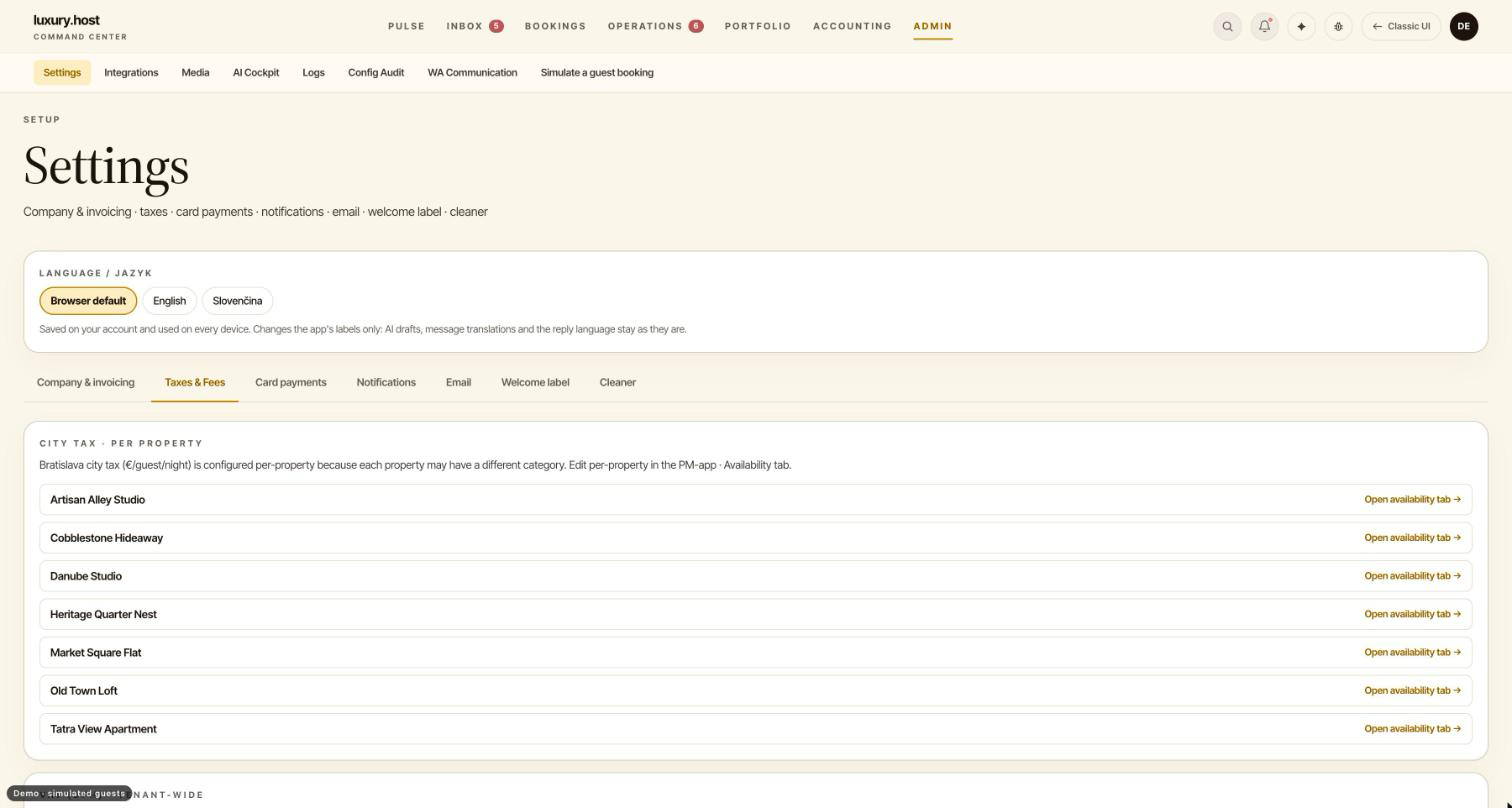 Tools to see what the app did, find out why something went wrong, and change how the AI writes.
In this section
- Logs: one screen with a tab for each log. The tabs are Activity, Audit, Webhook and Validator
- Webhook Logs: the Webhook tab, with every message the app received from connected apps
- Activity Log: the Activity tab, with everything you, your team and the app did
- Prompts editor: change the instructions the AI follows, in AI Cockpit → Prompts
Where to find Logs
Open Admin in the top menu, then Logs. Each account gets Logs switched on separately. If you do not see Logs under Admin, it is not switched on for your account. The app still keeps the records. Ask luxury.host support to switch it on.
Where to start when something goes wrong
- Something looks wrong with a booking or task: open Admin → Logs → Activity and look for that booking or task. See the Activity Log.
- A booking or guest message came in, but nothing happened (no tasks, message not shown): open Admin → Logs → Webhook and check the message arrived and its status is not FAILED. See Webhook Logs.
- The AI wrote something wrong: open Admin → AI Cockpit → Prompts and check which instructions the AI uses. See the Prompts editor.
- The app shows an error again and again: send a bug report from the app and contact luxury.host support. See Bug Report.
Source: the luxury.host operator manual.