Inbox on mobile
The mobile Inbox is the phone version of the Inbox on the computer: guest conversations where you approve the AI's draft replies.
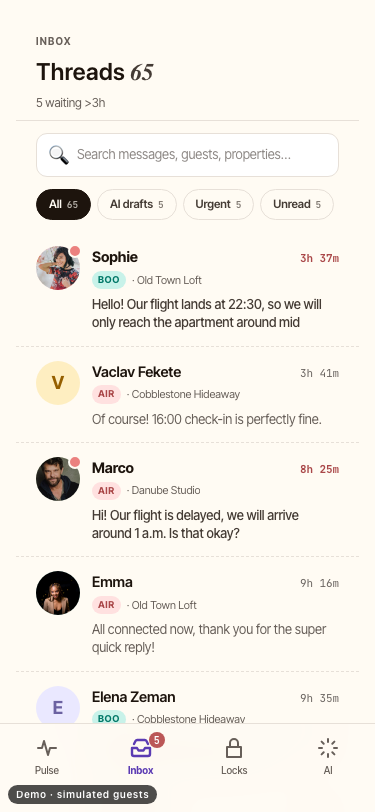
List view
The Inbox tab opens a list of conversations, newest activity at the top. Each row shows:
- Guest picture + name
- Property name (e.g.
Danube Studio) - The start of the latest message (translated if it is not in your communication language)
- How long ago (e.g. "2h", "yesterday")
- Tags:
unanswered,early·requested,late·requested,cleaning,2N
Use the search field at the top to search guest names and message text.
Detail view (the conversation)
Tap a row to open the conversation. You see:
- Header: guest name, property, dates, language picker.
- Reservation summary card: check-in / check-out times, number of nights, total amount, status.
- Thread: messages from oldest to newest. Each guest message starts with a date (e.g. "Mon · 14:32"), so you can tell a 20-day-old message from yesterday's at a glance.
- AI draft area: the reply the AI suggests. Two buttons change it:
- IMPROVE: keep the same language, make the wording better.
- REFINE: rewrite in your communication language.
Both buttons pick the reply language the same way the app does when it sends the message. - Composer: type your own text instead of the AI draft, or attach a file (📎).
When you tap SEND, the app keeps a copy of the AI's original draft. This way the app learns from the changes you made.
Flag a wrong draft
Use the 👎 button when the AI draft got something wrong. It is in the card's button row, next to EDIT.
- Tap 👎.
- Pick the reason: invented a commitment, wrong fact, wrong stay phase, repeated info, tone, language or other.
- Add a note if you want.
- Tap 👎 FLAG DRAFT.
The draft stays on the card. The flag is saved so the assistant can learn from it. You see it on the computer in AI Cockpit → Setup → Flagged drafts. The same button exists in the computer reply box and the Pulse quick reply. See AI Suggest → Flag a wrong draft.
Language picker
The language picker in the conversation header lets you choose the language for this conversation yourself:
- By default it uses the detected language (see Language detection rules).
- "Original" is always there. Pick it to reply in the language the guest wrote in, whatever your communication language is.
- Your choice is saved, and the conversation is translated again when you save.
Checked-out badge
A conversation for a stay that has ended shows a CHECKED OUT badge. It appears only after the real checkout time has passed.